How to Run MinIO Locally with Docker on Windows (S3-Compatible Setup)
If you're building applications that depend on AWS S3 but want a faster, cost-free local development setup, MinIO is one of the best tools available for developers working on file uploads, storage logic, or SaaS application backends.
MinIO is a high-performance, S3-compatible object storage system that lets you simulate AWS S3 on your local machine — without cloud costs or internet dependency. It's ideal for testing file uploads, connecting to CMS platforms like Payload, and building integrations before going to production.
In this guide, you will learn how to run MinIO locally on Windows using Docker, create buckets, and connect it to your application.
💡 Building a product that needs scalable file storage? Asynx Devs helps SaaS teams and ecommerce brands set up MinIO and managed S3 storage end-to-end. Book a free consult →
What is MinIO?
MinIO is an open-source object storage server that is fully compatible with the Amazon S3 API. It can run on your local machine for development and testing, or be deployed to production cloud environments at scale.
Key benefits:
- S3-compatible APIs — no code changes when switching to AWS S3 later
- Lightweight and extremely fast
- Easy to run locally or self-host in production
- Perfect for development, testing, and CI/CD pipelines
Official site: https://min.io
Why Use MinIO for Local Development?
If you're a full-stack or backend developer building storage features, MinIO removes the friction of cloud dependency during early development.
- No AWS costs during development
- Faster testing and debugging with local reads/writes
- Works fully offline
- Same S3 API — zero code changes when you go to production
- Compatible with Payload CMS, Next.js, and other modern frameworks
Prerequisites (Windows Setup)
This guide is for full stack developers or anyone building Node.js/Python applications that use file storage.
Before starting, make sure you have:
- Docker Desktop installed
- WSL2 enabled (recommended)
- Basic knowledge of terminal or PowerShell
Download Docker: https://www.docker.com/products/docker-desktop
Step 1: Create a Local Data Folder
Open PowerShell and run:
1mkdir C:\minio\data
Step 2: Run MinIO Using Docker
Run the following command to start a MinIO Docker container with the console enabled:
1docker run -d \2 --name minio \3 -p 9000:9000 -p 9001:9001 \4 -v C:\minio\data:/data \5 -e MINIO_ROOT_USER=admin \6 -e MINIO_ROOT_PASSWORD=Admin12345 \7 minio/minio server /data --console-address ":9001"
Step 3: Access MinIO Console
Open your browser and go to: http://localhost:9001
Login using:
- Username: admin
- Password: Admin12345
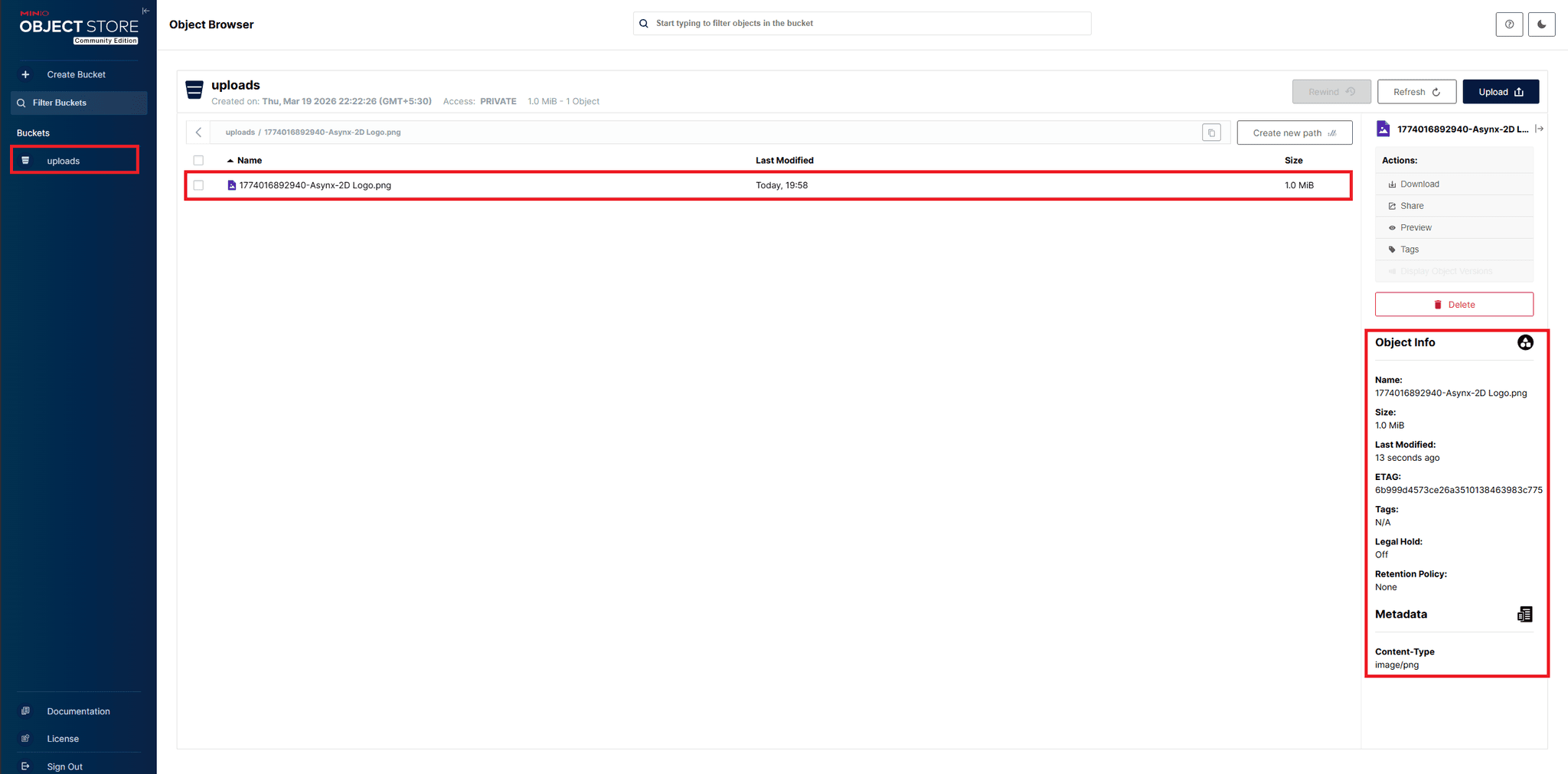
You'll see the MinIO dashboard — a clean UI to manage buckets, objects, and access policies.
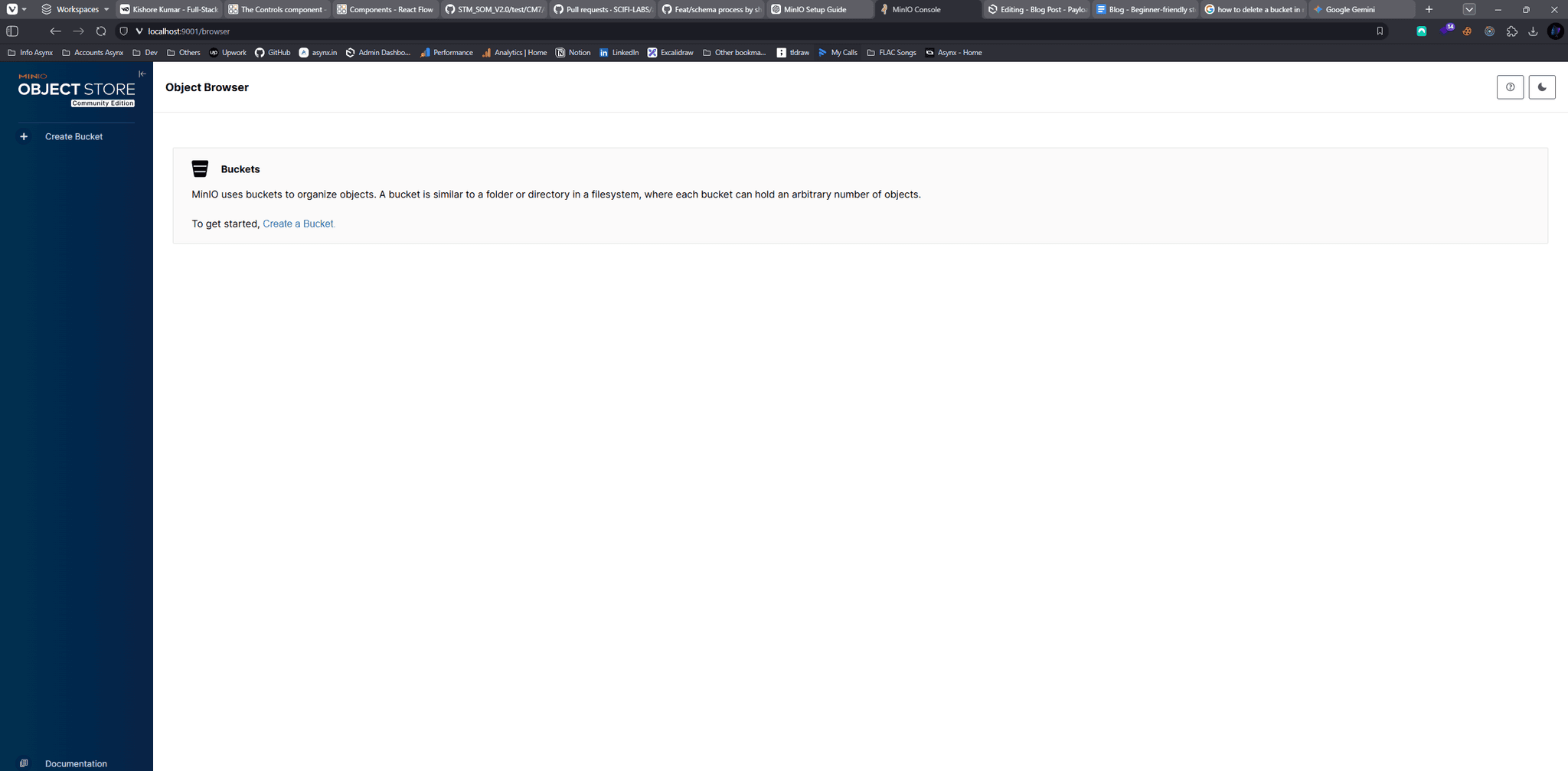
Step 4: Create Your First Bucket
Inside the MinIO dashboard:
- Click Buckets
- Click Create Bucket
- Enter a name (example: uploads)
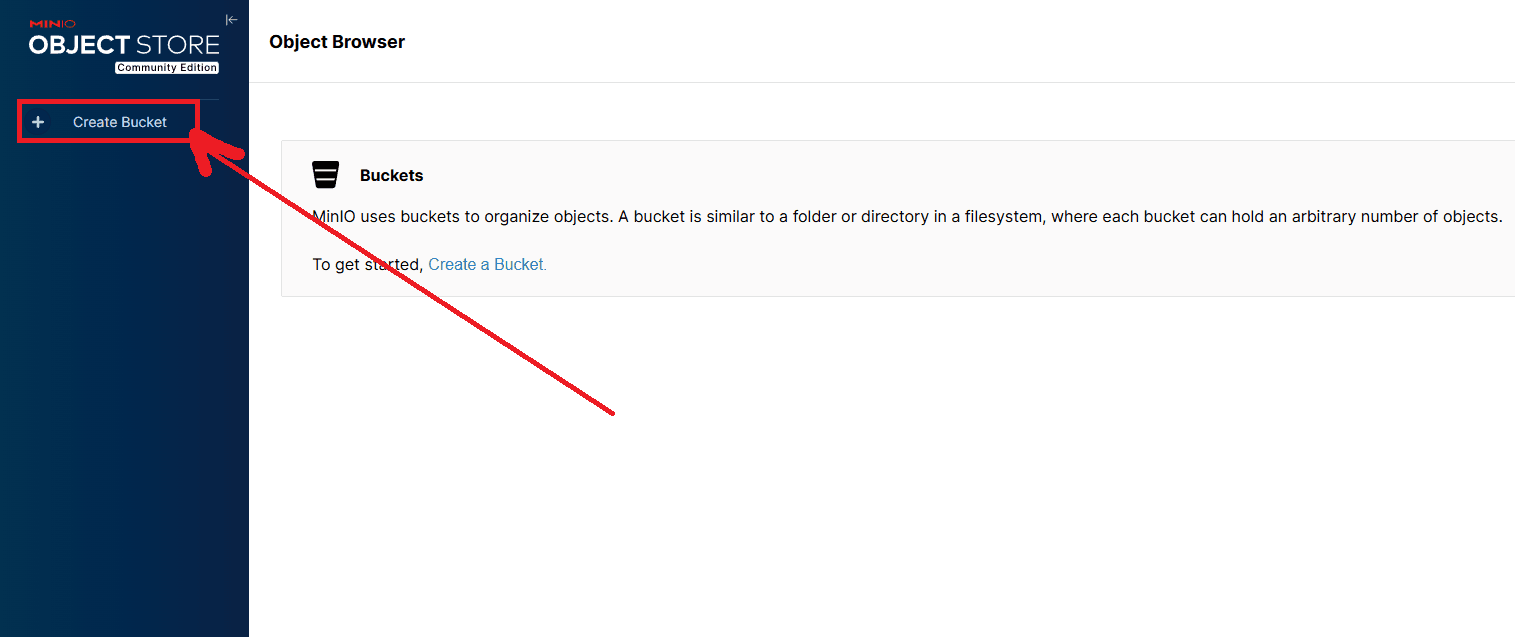
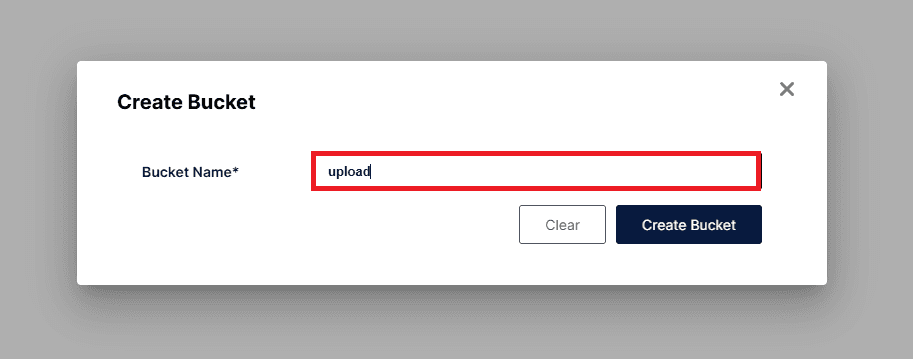
You now have your own S3-compatible local storage bucket running in Docker.
Want to connect MinIO to your Next.js or Payload CMS project? Read our step-by-step integration guide: How to Integrate AWS S3 with Payload CMS →
What's Next?
Now that you have MinIO running locally, here are natural next steps:
- Payload CMS Storage Adapters: S3, R2, MinIO — connect your CMS to MinIO with the right adapter
- Self-Host MinIO with Docker (Production Guide) — for advanced configuration, SSL, and production deployment
- Cloud Deployment Services by Asynx — if you need managed infrastructure beyond local dev
Conclusion
MinIO is one of the easiest ways to simulate S3 locally, especially on Windows where setup guides are limited. With Docker, you can get a fully functional self-hosted object storage system running in minutes.
This setup is perfect for SaaS developers and full-stack teams who want a reliable, fast, and cost-effective way to build and test storage-heavy applications.
For advanced MinIO configuration, production self-hosting, and integration with your existing stack, read the complete self-hosted MinIO guide →
Running into setup issues or need MinIO deployed in production? Book a free 30-minute call with the Asynx Devs team — we handle cloud storage setup, S3 migrations, and backend integrations for SaaS and ecommerce teams. Contact Asynx Devs →